Knowledge base
Sign in
Categories
Download
ODARING
SQL ACCOUNT
SQL ACCOUNT E-INVOICE
SQL Payroll - HRMS
SQL POS
SQL POS E-INVOICE
ZEONIQ E-INVOICE
ZEONIQ MEMBER
ZEONIQ POS
ZEONIQ POS iPAD
ZEONIQ POS XPRESS
ZEONIQ RMS
Batch Email Statements/Invoices
SQL ACCOUNT
Batch Email Statements/Invoices
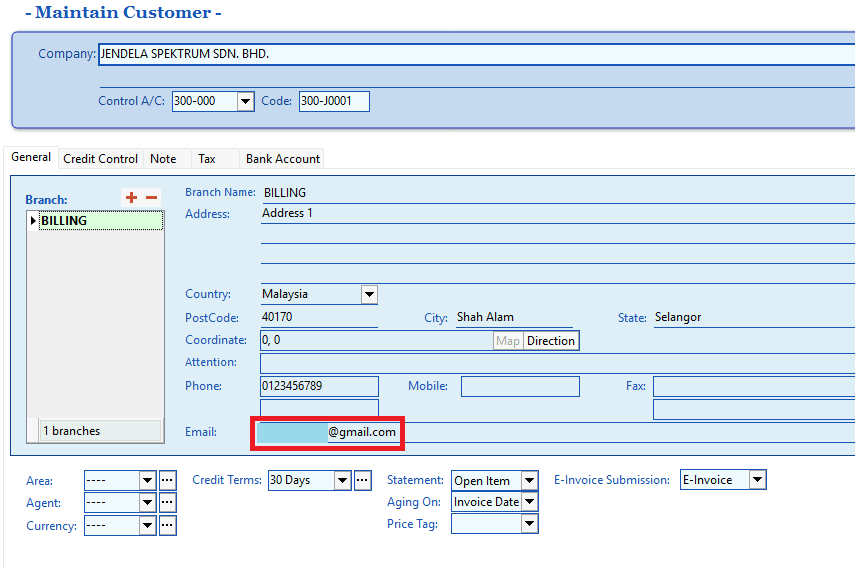
In Maintain Customer:
1. Ensure that the email address is filled in correctly.
In Company Profile:
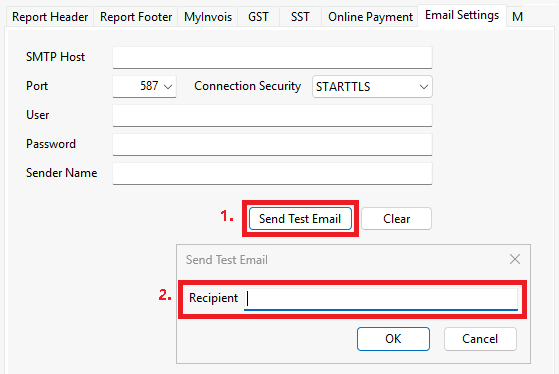
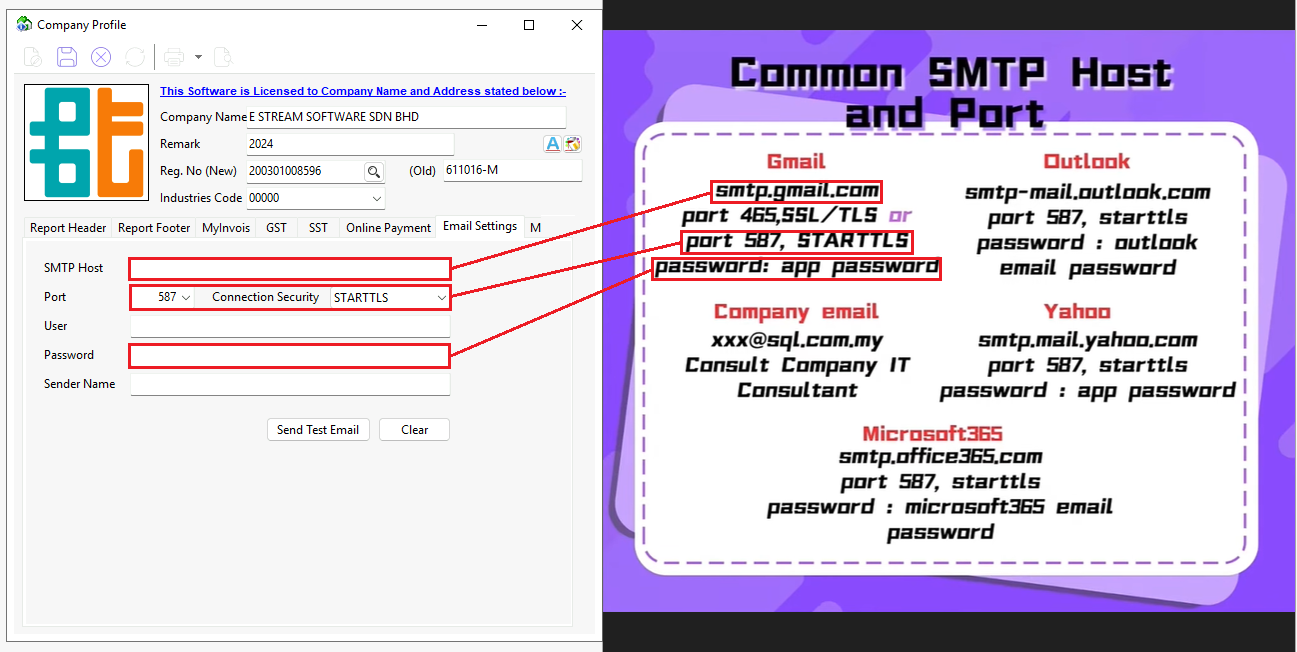
1. Go to
Email Settings
,
fill in the details based on different email accounts.
Examples for User and Sender Name:
User:
Company email (e.g. estream@gmail.com)
Sender Name:
NoReply
2.
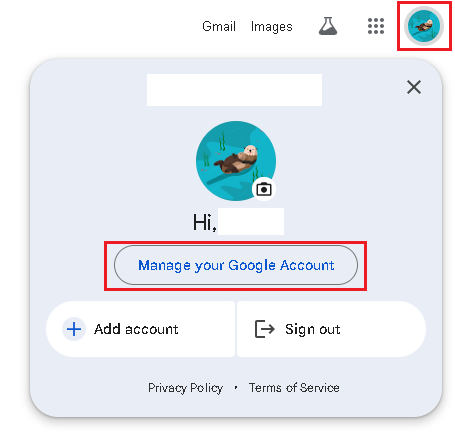
For app password, go to Google, at the top right click on your profile icon and click '
Manage Google Account
'.
3.
I
n
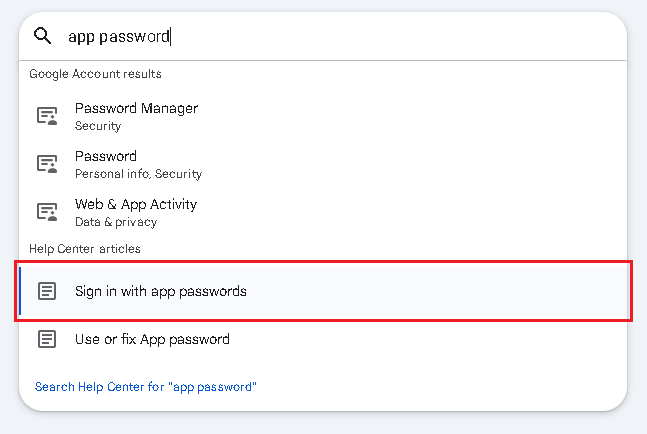
the search bar, type "app password" and click '
Sign in with app passwords
'.
4. Under Help Center, find '
Create and manage your app passwords
' and click it.
Then, enter your account password to continue.
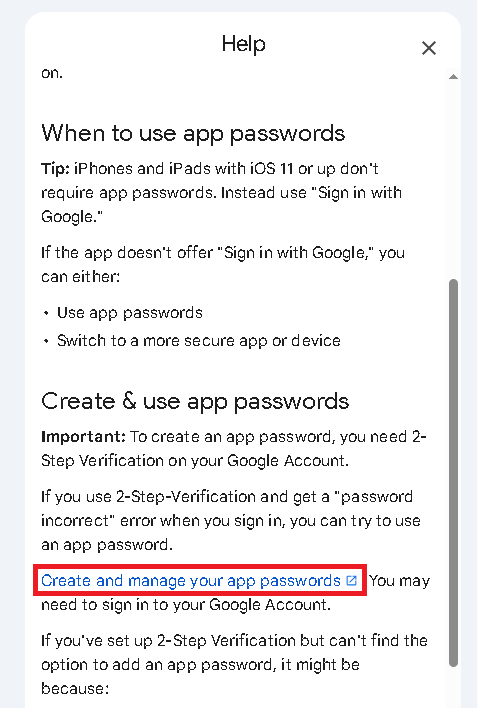
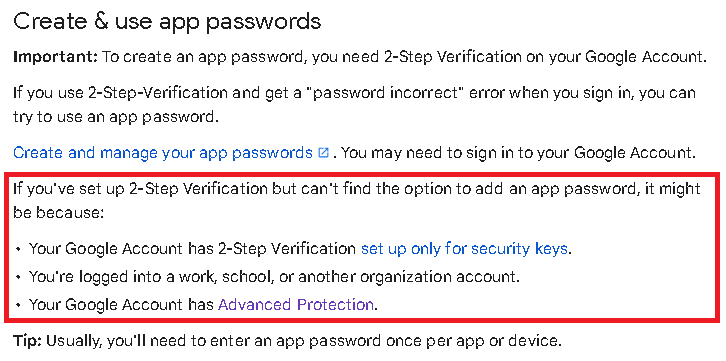
5. If app passwords is not available for your account, may refer to the following information under Help Center.
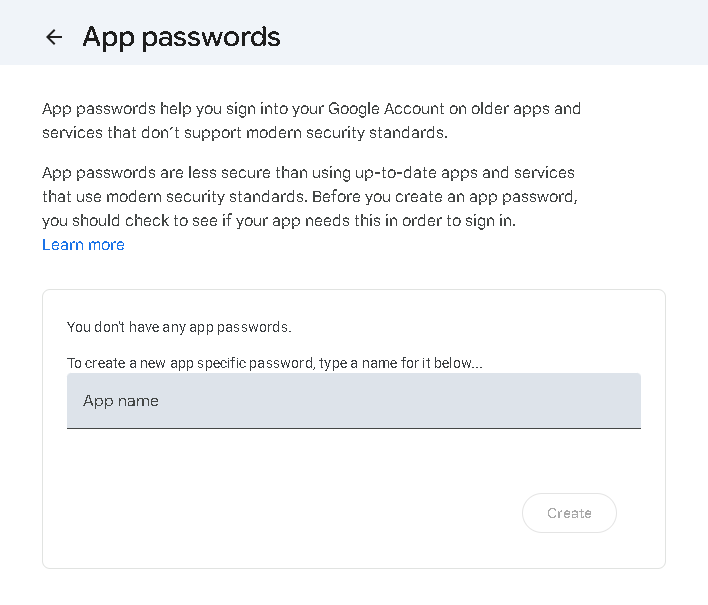
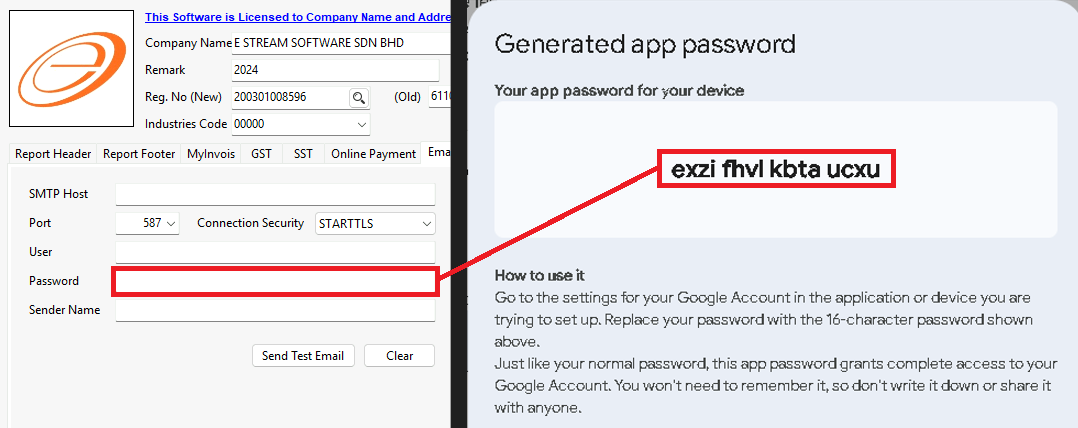
6. If app passwords is available, the following will be shown.
Enter a name then click
Create
.
7. Copy the generated password and paste it into Email Settings.
Send Test Email:
1. Click
Send Test Email
, enter Recipient's Email, then click OK.
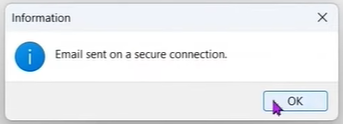
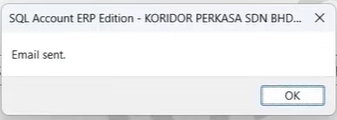
2. Once this window pops up, it means the email has been sent successfully.
The email address you entered as the recipient earlier will receive an email with the message "
This is a test email."
How to email E-invoice to customers?
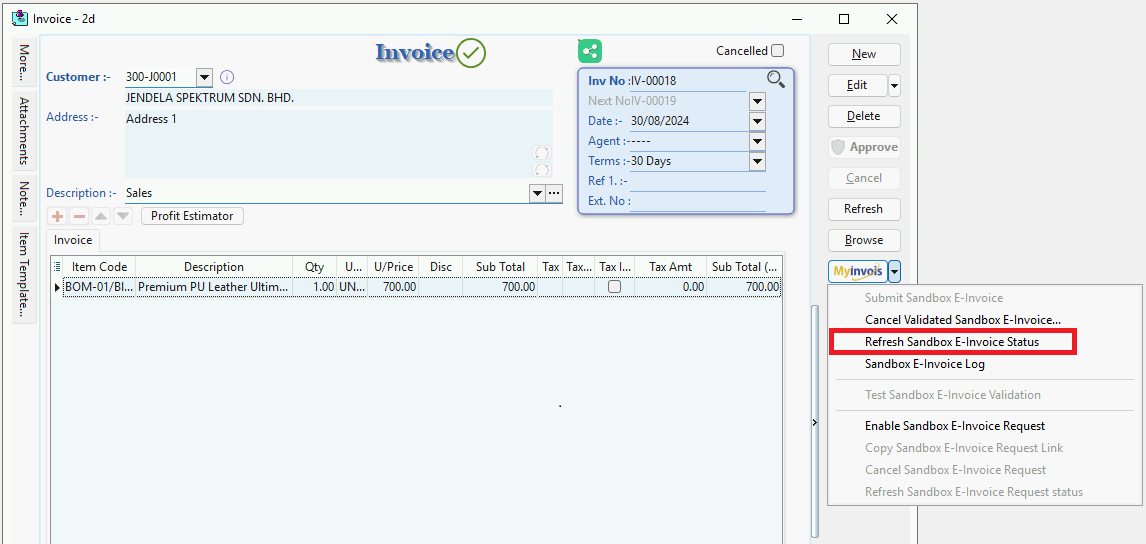
1.
Open an invoice that has been submitted as an e-Invoice, c
lick
MyInvois
and choose
Refresh Sandbox e-Invoice Status
.
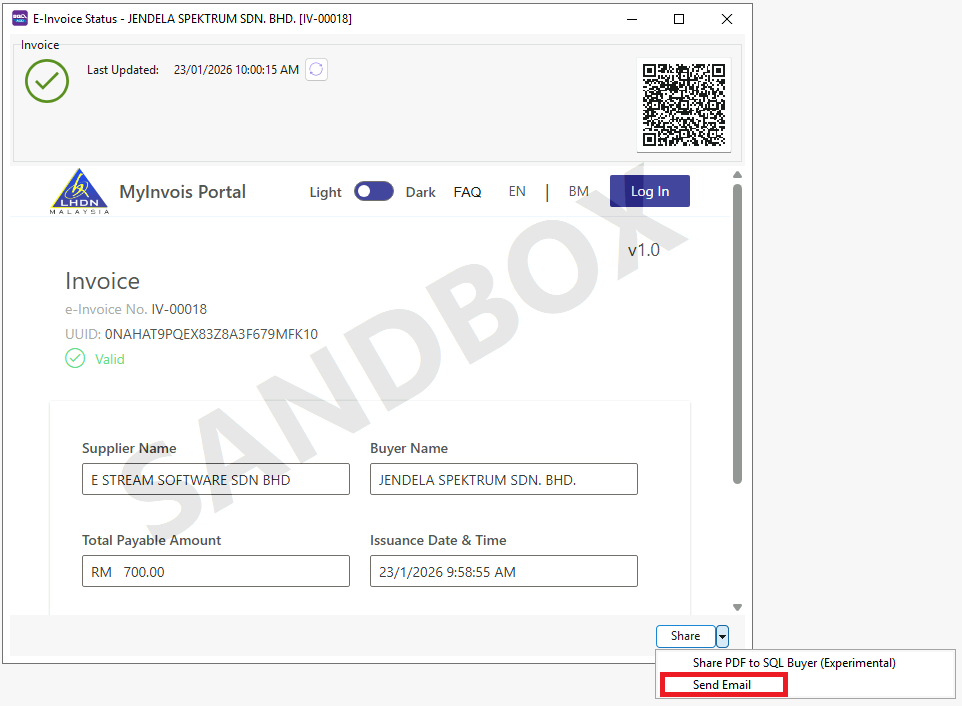
2.
At the bottom, click
Share
and select
Send Email
.
4.
Choose a report format then click
OK
.
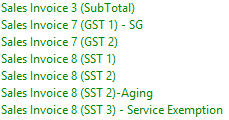
Please note that only the following formats support the batch email function.
For easy recognition, t
hese formats are highlighted with a
yellow frame
.
5. A confirmation message will appear once the email is sent.
Video Guide:
Batch Email Statements/Invoices
Was this article helpful?
Yes
No
Delete?
Are you sure? You won't be able to undo this action!