Categories
02. CXM Report, backend guide on dashboard & listing
1. Dashboard
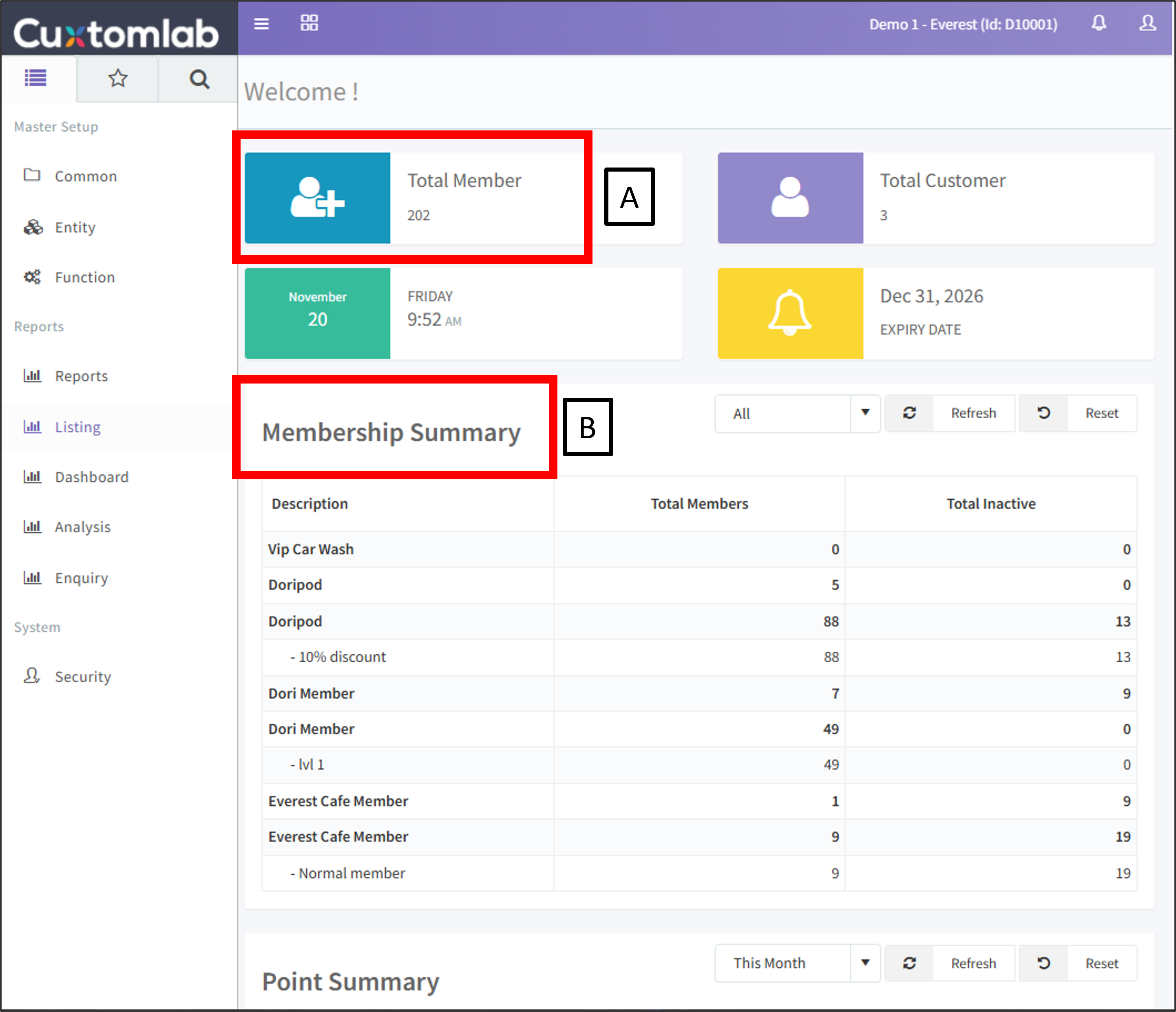
[A] Total Members – Shows your total number of members.
[B] Member Summary – Shows the number of active and inactive members under each membership level, e.g. Silver → Gold.
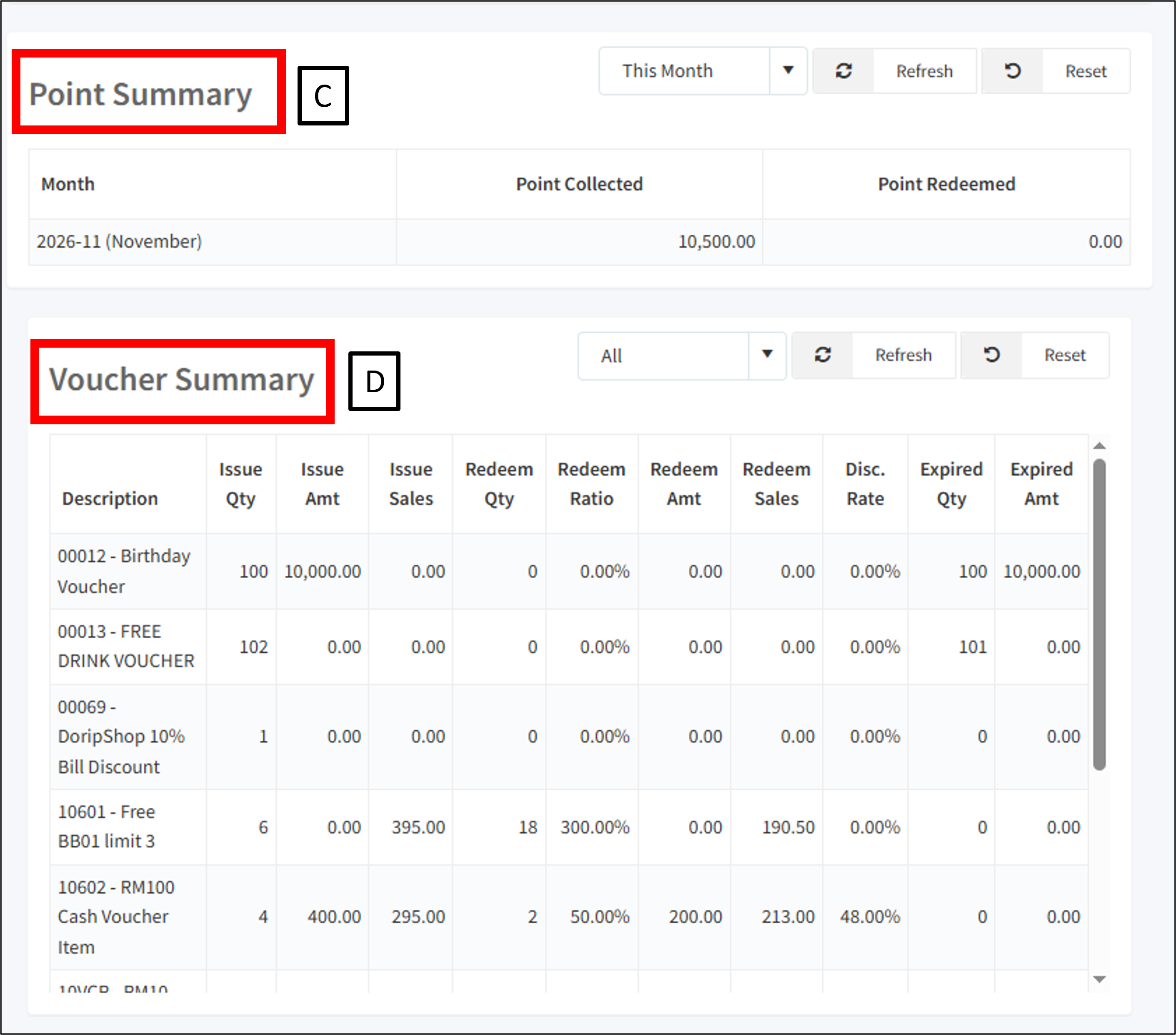
[C] Point summary – Shows the total points collected and redeemed.
[D] Voucher Summary – Shows voucher details, including issued, redeemed, and expired quantities for each voucher type.
2. Listing
The Listing section allows you to view different reports and generate listings based on your preferred filters.
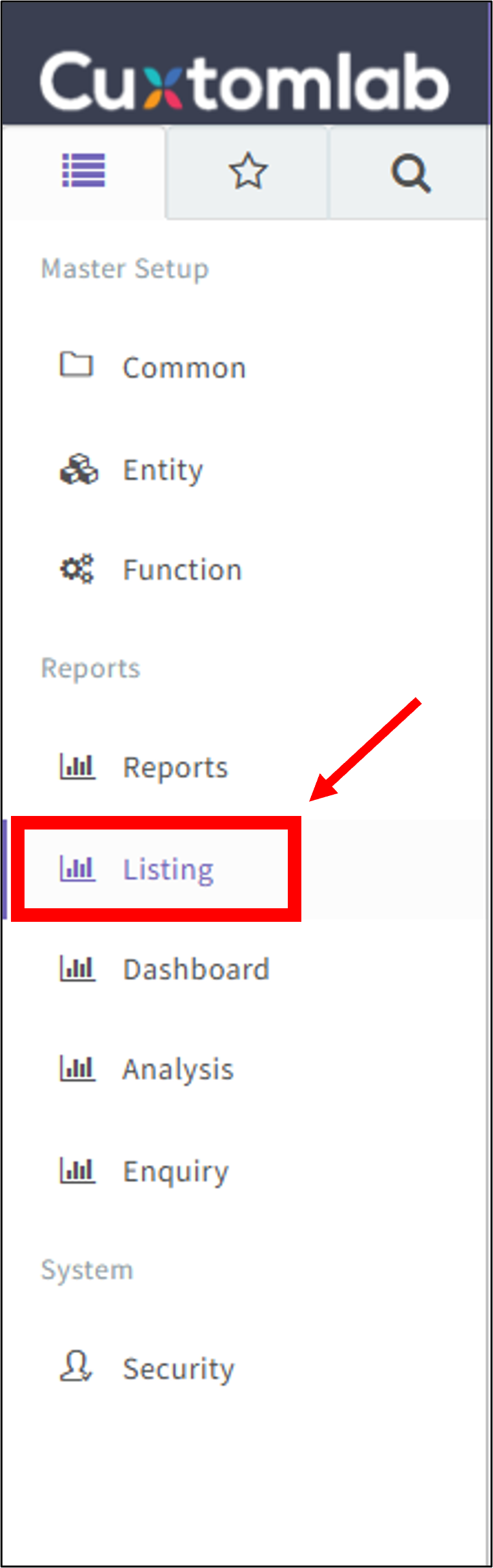
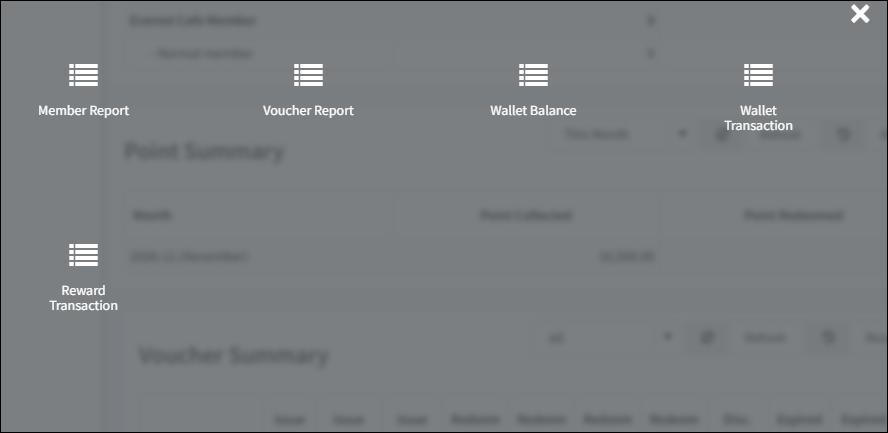
Go to the side panel → Listing to access the following reports:
1.Member Report – View membership details such as join date, phone number, etc.
2.Voucher Report – View voucher details such as voucher number, effective date, etc.
3.Wallet Balance – Check each member's wallet or credit balance.
4.Wallet Transaction – View individual members' wallet transaction details, including transaction dates.
5.Reward Transaction – View reward records, such as birthday rewards and Platinum membership rewards.
3. How to Adjust Filters
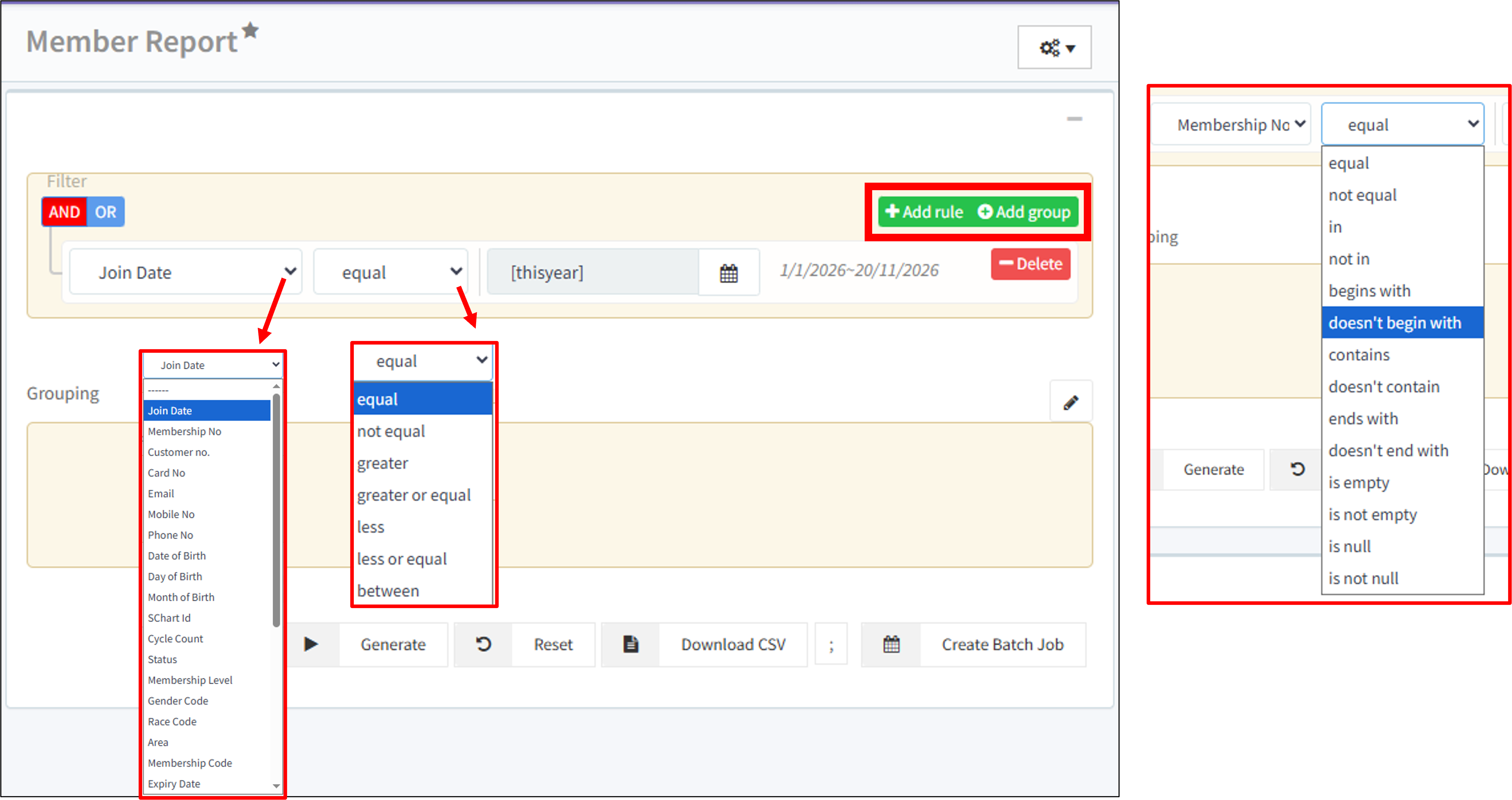
You can customise your search by clicking the down arrow icon to view more filter options.
-Equal – Search for an exact date or value.
-Between – Search within a specific date range.
-Contains – Recommended for Membership Number, as it allows you to search for partial matches and retrieve more relevant results.
Add Rule allows you to apply multiple filter conditions to narrow down your search.
For example:
-Join Date = This Year
-Membership Number contains = 123
**This will display members who joined this year and whose membership numbers contain "123".
4. Others
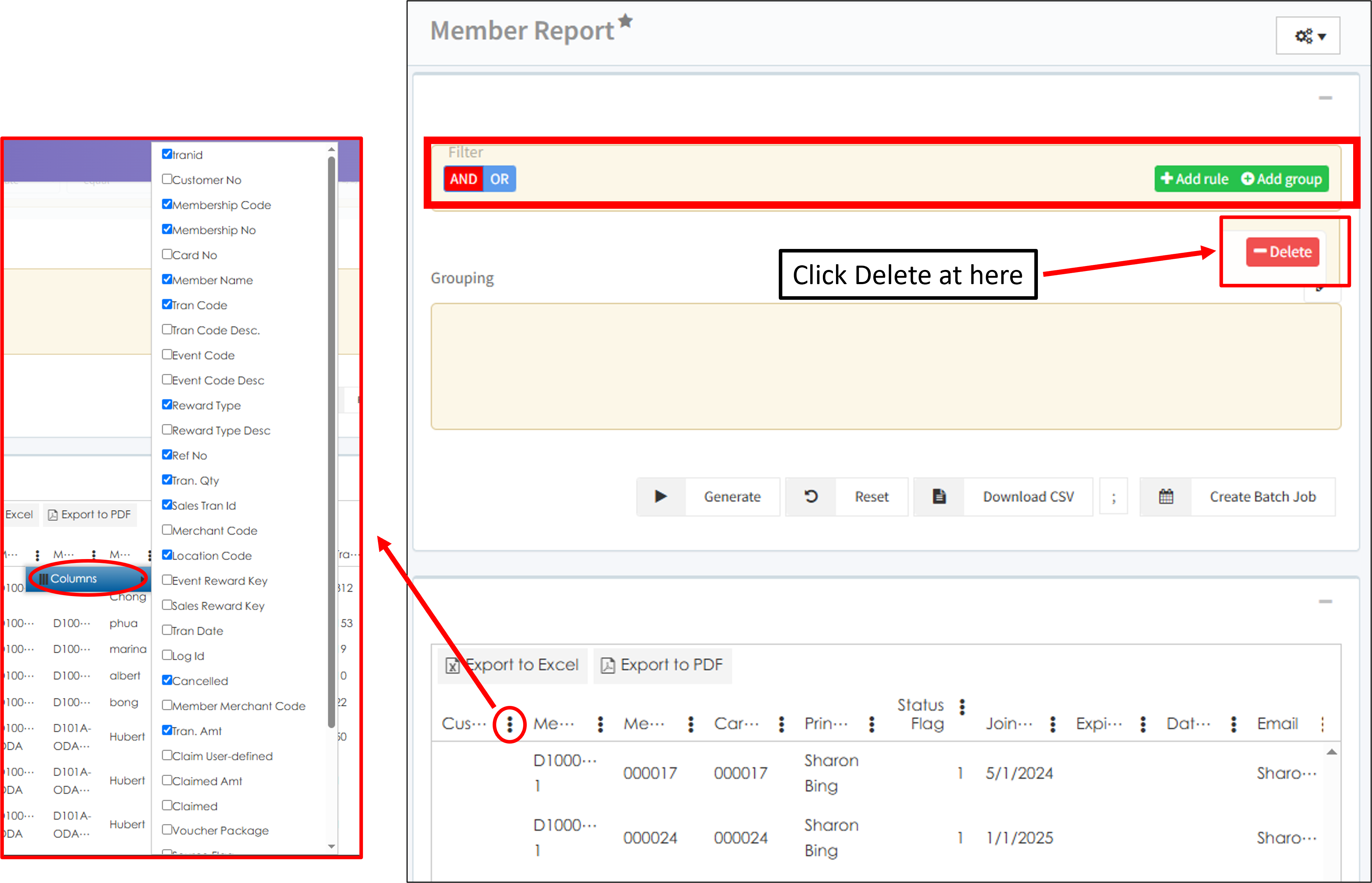
-Clear Filters – If you wish to view all records without any filters, click Delete to remove the filter conditions and leave them empty.
-Additional Conditions – After clicking Generate, click the 3-dot icon to view additional conditions. Tick the options you wish to apply.